An offline FM radio-control app designed for the RFinder B1+.
Tune frequencies directly or store up to 50 channels. No internet connection, account or subscription is required.

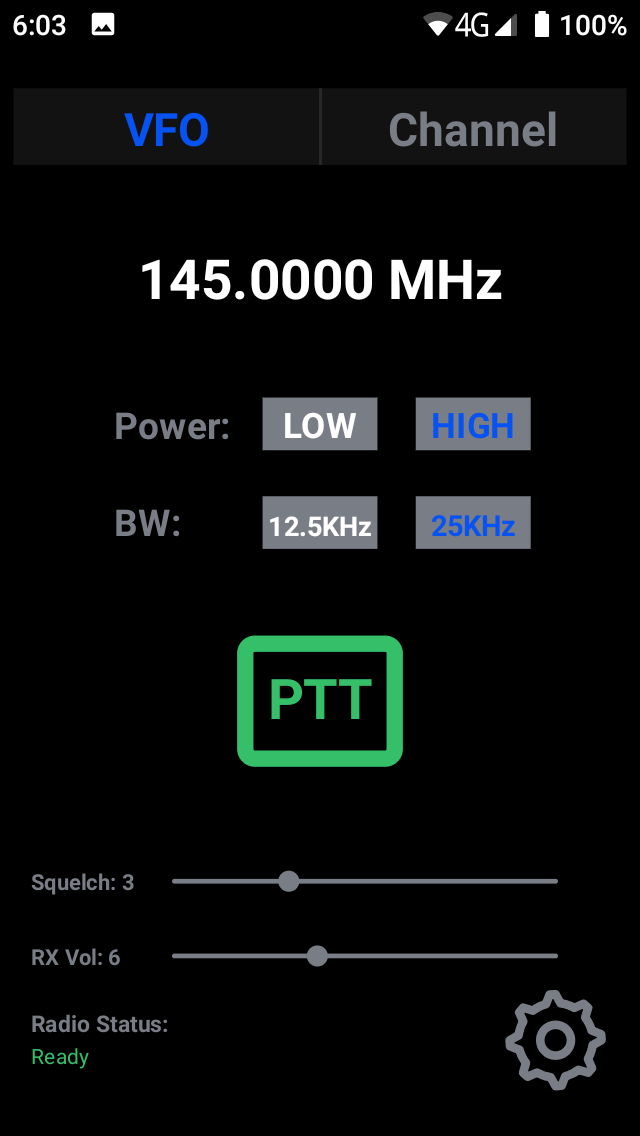
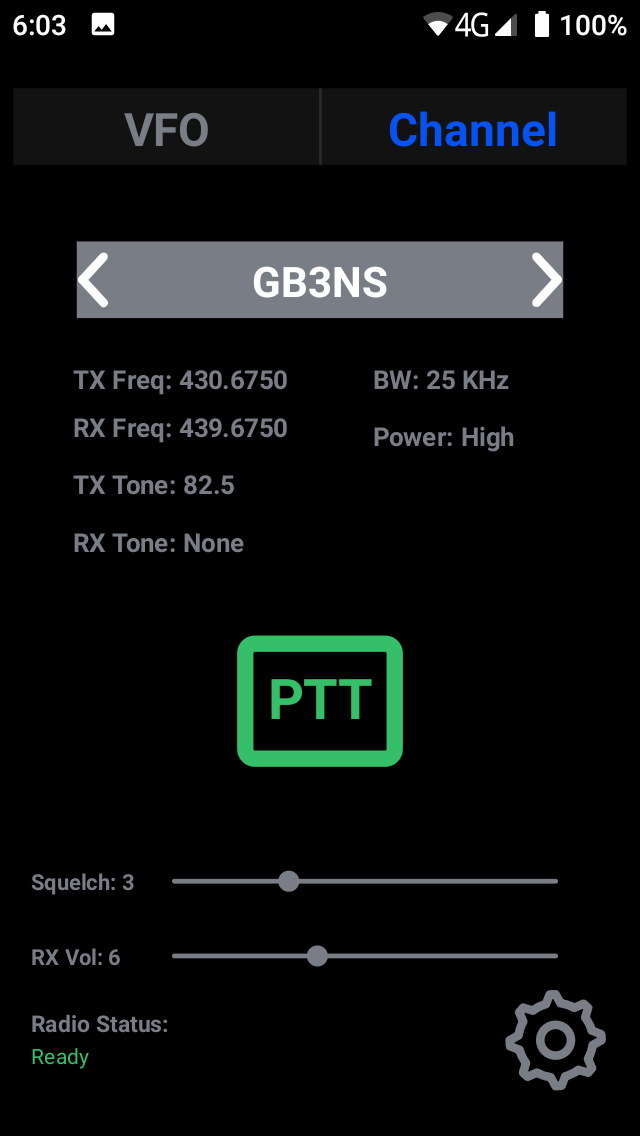
- VFO and saved-channel modes.
- Tap-to-edit VFO frequency.
- Supported frequency ranges: 136–174 MHz and 400–480 MHz.
- Remembers the last VFO frequency.
- Selectable 5, 15 and 25 kHz tuning steps.
- Low/High transmit power.
- 12.5/25 kHz bandwidth.
- Physical PTT operation.
- 0–10 squelch control, including monitor mode.
- 0–16 radio receive-volume control.
- Storage for up to 50 channels, with separate TX/RX frequencies and tones.
- Close and force-stop any other radio-control apps.
- Open VFO Radio Control.
- Wait for Radio Status: Ready before operating.
Use only frequencies and operating settings permitted by your licence. The app’s supported frequency range does not determine permission to transmit.
VFO mode lets you enter a frequency directly.
On first use, the frequency is 145.5000 MHz. The app remembers your last VFO frequency and opens on the VFO page each time it starts.
- Tap the large frequency display.
- Enter the frequency in MHz—for example, 145.5000.
- Tap Tune.
The radio updates automatically. In VFO mode, transmit and receive frequencies are identical.
Supported ranges are 136–174 MHz and 400–480 MHz. An out-of-range entry displays Out of band error.
| Control | How to use it |
|---|---|
| Power | Tap LOW or HIGH. |
| Bandwidth | Tap 12.5 kHz or 25 kHz. |
| Selector knob | Turn to increase or decrease the frequency. |
| VFO steps | Open Settings → VFO Steps and select 5, 15 or 25 kHz. |
Blue text indicates the selected power or bandwidth.
The first knob movement after reopening the app may establish its starting position without changing frequency.
Use the radio’s physical side PTT button.
- Press and hold PTT.
- Speak into the radio’s microphone.
- Release PTT to return to listening.
The on-screen PTT box is a status indicator, not a touch button.
| Colour | Meaning |
|---|---|
| Grey | Radio not ready. |
| Green | Radio ready. |
| Red | A physical PTT press has been detected. |
Squelch controls when received audio is heard.
- Move the Squelch slider between 0 and 10.
- The default setting is 3.
- 0 enables monitor mode, opening squelch and bypassing receive-tone filtering. Noise may be audible when no signal is present.
Some neighbouring slider positions use the same hardware squelch threshold.
RX Vol controls the radio’s receive-audio level.
- Move the slider between 0 and 16.
- Release the slider to apply the setting.
- The setting is remembered for next time.
RX volume is separate from Android’s media-volume control.
- Tap the settings cog.
- Select Manage Channel.
- Tap Add Channel.
- Enter the channel details.
- Tap Save.
| Field | Purpose |
|---|---|
| Name | A recognisable channel name. |
| TX Freq | Frequency used to transmit. |
| RX Freq | Frequency used to receive. |
| Power | Low or High. |
| TX Tone | Tone sent when transmitting, or None. |
| RX Tone | Tone required to hear received audio, or None. |
| BW | 12.5 or 25 kHz bandwidth. |
Unlike VFO mode, saved channels can have different transmit and receive frequencies. Use the settings supplied for the station or repeater you intend to use.
To edit a saved channel, open Manage Channel and tap its name. Channels can also be deleted from the editor.
A maximum of 50 channels can be saved.
Tap the Channel tab at the top of the main screen.
- Use the left and right arrows to change channels.
- Turn the radio selector knob to move through saved channels.
- Tap the channel name to open the channel selector.
The selected channel’s settings are applied automatically. Its frequencies, tones, power and bandwidth appear below its name.
| Status | Meaning |
|---|---|
| Initialising… | The app is connecting to or configuring the radio. |
| Ready | The radio has acknowledged the current settings. |
| Out of band error | The entered frequency is outside the supported ranges. |
| Error | A radio operation did not complete successfully. |
Leaving the app or switching the screen off requests radio shutdown.
Returning to the app reconnects the radio and reapplies the current selection.
This build supports FM only. DMR controls and background reception are not included.
No. This build is intended for the RFinder B1+ and checks the device model before accessing the radio hardware.
The RFinder B1 and other devices are not supported.
There are currently no plans to implement DMR. As a project decision, and out of respect for the work behind the Unified Radios app, VFO Radio Control will remain focused on FM operation.
The limit may be increased in a future update, depending on user feedback.
73’s
